
Export your glossaries to keep a backup, edit many terms at once in a spreadsheet, or copy them to another Confluence site or provider. Import brings them back in.
Glossaries are stored in your DeepL or Google account, not in Confluence. Export them before you change the API key or credentials, otherwise Easy Translator can no longer reach them.
You'll find both actions in the Glossaries section of the DeepL or Google tab in the Easy Translator for Confluence settings.
Export glossaries
-
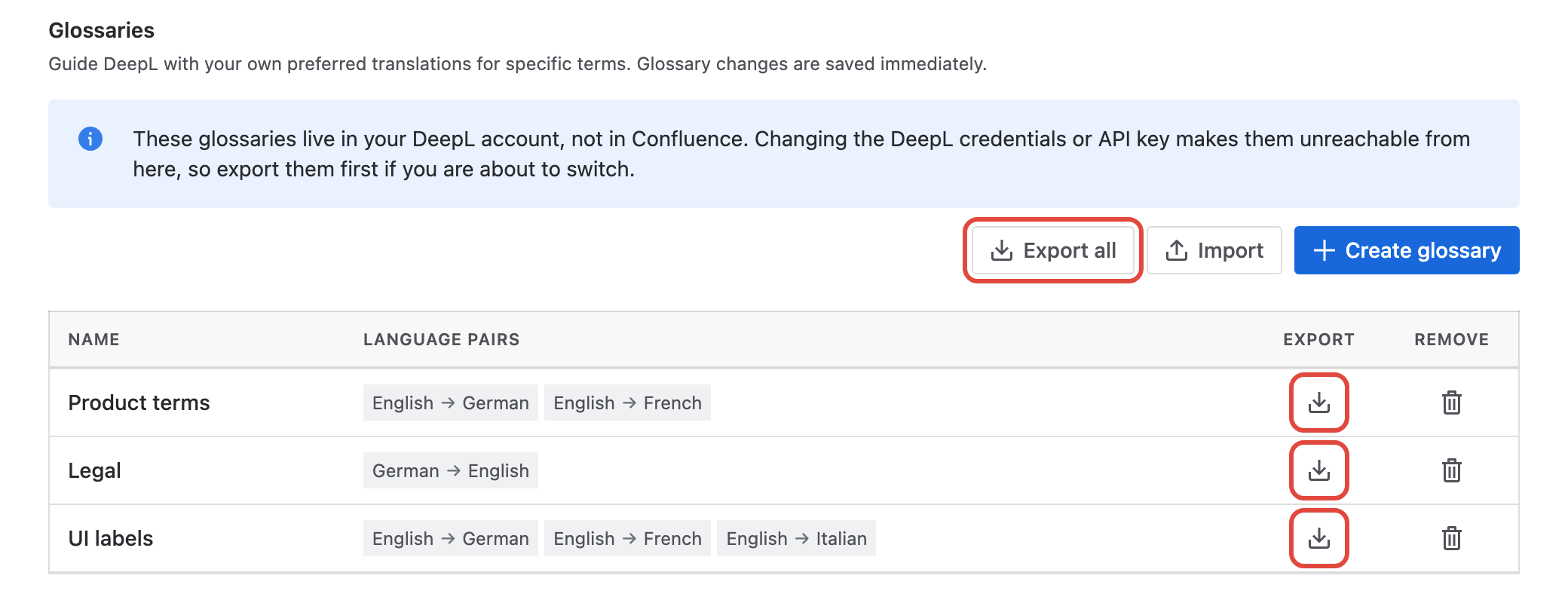
To export one glossary, click its icon in the Export column.
-
To export all glossaries, click Export all.
Export glossary | Image
|
You export |
You get |
|---|---|
|
A glossary with one language pair |
|
|
A glossary with several language pairs |
|
|
Export all |
|
Import glossaries
-
Click Import, then Choose file, and select an exported
.zipor.tsvfile. -
Check the preview. For each glossary and language pair it shows how many terms are new, changed, unchanged and removed. Nothing is saved yet.
-
Choose Merge or Replace, then click Import.
-
Keep the dialog open until the import finishes, then click Done.
Import glossary | Image
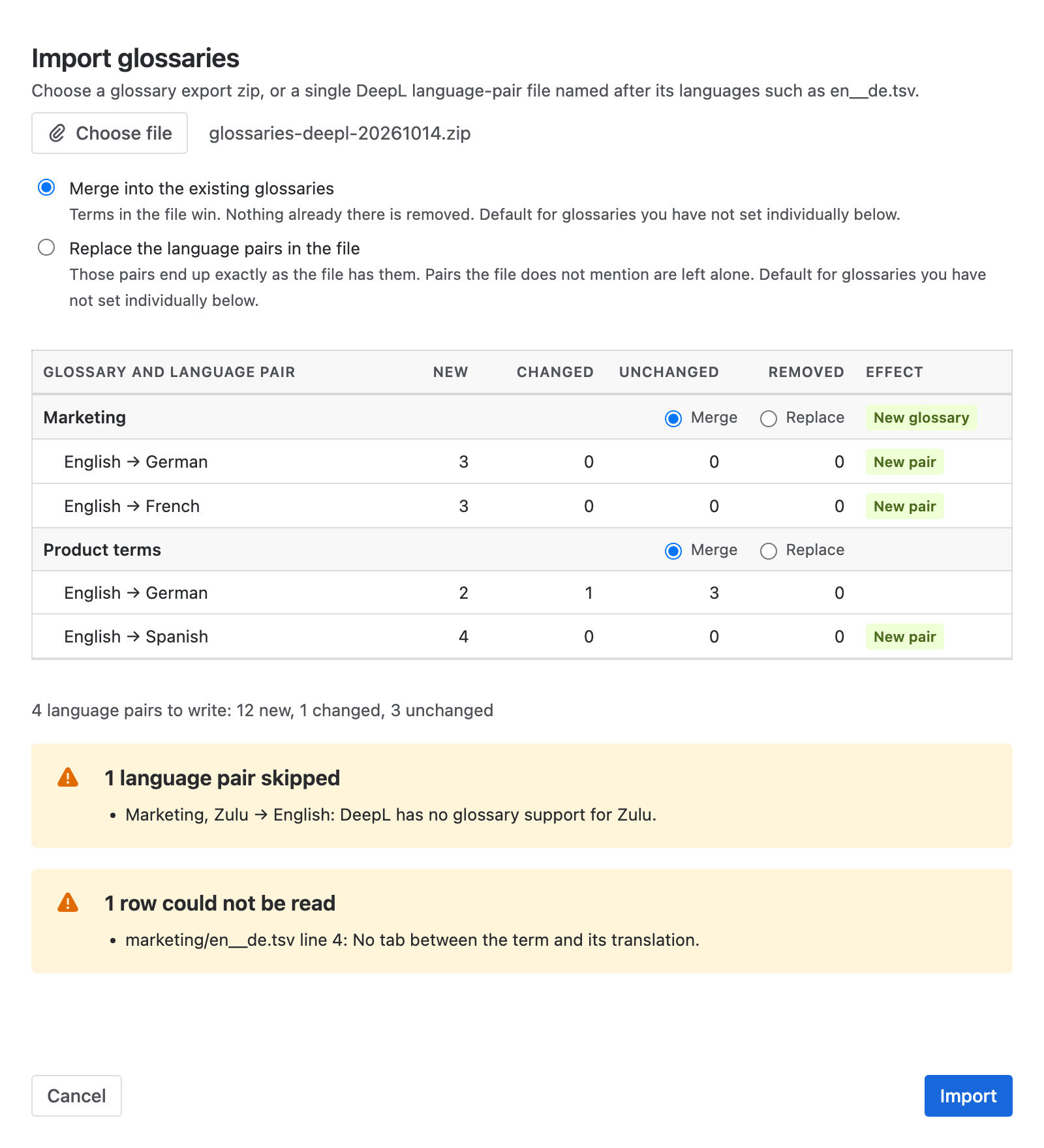
Glossaries are matched by name. If no glossary has that name, a new one is created and marked New glossary in the preview.
Merge or Replace
|
|
Merge (default) |
Replace |
|---|---|---|
|
Terms in the file |
Added, or update the existing translation |
Added, or update the existing translation |
|
Terms only in the glossary |
Kept |
Removed |
|
Language pairs not in the file |
Untouched |
Untouched |
The choice at the top applies to every glossary. To change it for one glossary, use the Merge and Replace options in that glossary's row of the preview.
Warnings and failures
The preview lists anything it can't use, and the rest of the file is still imported:
-
Language pair skipped: the provider doesn't support glossaries for one of the languages.
-
Row could not be read: the line has no tab, more than one tab, or an empty term. That line is ignored.
Each language pair is saved separately, so if one fails, the others stay saved. Click Retry failed pairs to try only the failed ones again.
Google glossaries
When an import changes a lot of terms in an existing Google language pair, that pair is rebuilt. The preview marks it Rebuilt, briefly unavailable, and translations may run without that pair for a moment.
Editing files yourself
A .tsv file has one term per line: the term, a tab, then the translation. It has no header row. Its name is the two language codes joined by two underscores, such as en__de.tsv.
page tree	Seitenbaum
space	Bereich
In Excel or Google Sheets, save the file as Tab-separated values (.tsv), not CSV.
A .zip file contains one folder per glossary, with one .tsv file per language pair:
glossaries-deepl-20261014.zip
├── manifest.json
├── product-terms/
│   ├── en__de.tsv
│   └── en__fr.tsv
└── legal/
    └── de__en.tsv
You can import a file exported from DeepL into Google, or the other way round. The language codes are converted automatically.