
Setting up Google API
To use Google Cloud Translator as a machine translation service, you can use Google Cloud Translation in two ways. Google calls these Cloud Translation - Basic (v2) and Cloud Translation - Advanced (v3). Pick the one that matches what you need.
|
|
Cloud Translation - Basic (v2) |
Cloud Translation - Advanced (v3) |
|---|---|---|
|
Credential |
Cloud Translation API key |
Service account JSON key |
|
Setup effort |
Low |
Moderate - needs a project, a region and a bucket |
|
Glossaries |
Not available |
Available |
v2 is the default. Switch to v3 only if you want glossaries with Google. Both sets of credentials can be stored at the same time, so you can switch back and forth without re-entering anything.
Google's own documentation states that https://docs.cloud.google.com/translate/docs/authentication the Cloud Translation - Advanced API (v3) does not support API keys. That is why v3 needs a service account.
You can find both under Confluence settings → Easy Translator for Confluence → Google
Option A - Setup with an API Key (v2)
-
What you need from Google Cloud: a project with billing and the Cloud Translation API enabled, and a Cloud Translation API key. Google's https://docs.cloud.google.com/translate/docs/setup covers all of it.
Then, in Easy Translator:
-
Open the Google tab in the Easy Translator settings.
-
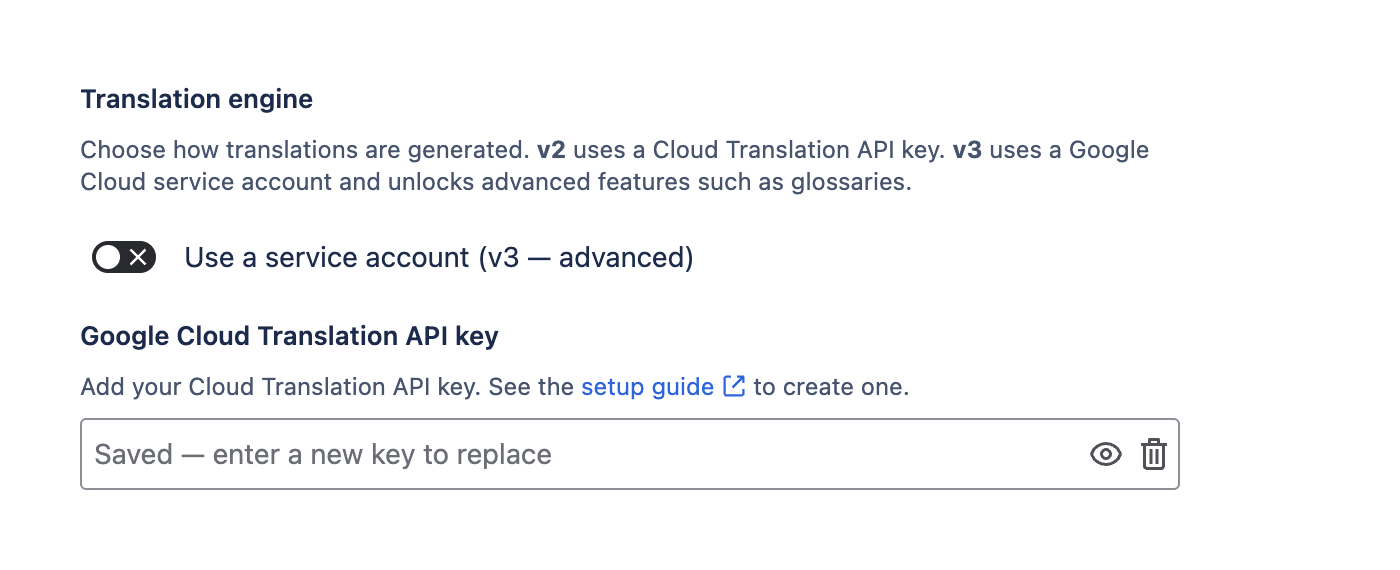
Leave Use a service account (v3 - advanced) switched off.
-
Paste your key into Google Cloud Translation API key.
-
Save.
-
Once a key is saved, the field shows Saved - enter a new key to replace. The key itself is never shown again. Use the bin icon to remove it.
Google v2 API key | Image
Option B - Setup with a service account (v3)
Use this if you want glossaries with Google.
What you need from Google Cloud
Set these up in the Google Cloud console first. Each row links to Google's own instructions.
|
You need |
Why |
Google's guide |
|---|---|---|
|
A project with billing and the Cloud Translation API enabled |
Everything runs against this project |
|
|
A service account with a JSON key |
v3 does not accept API keys |
https://docs.cloud.google.com/iam/docs/service-accounts-create
|
|
A Cloud Storage bucket, in the region you will use for glossaries - glossaries only |
Glossary files are staged here before Google imports them |
Roles the service account needs
Easy Translator follows the principle of least privilege: grant the service account only the roles below, and nothing broader. The full list of Cloud Translation roles is in Google's https://docs.cloud.google.com/translate/docs/access-control.
To translate:
|
Role |
ID |
|---|---|
|
Cloud Translation API User |
|
To also use glossaries:
|
Role |
ID |
|---|---|
|
Cloud Translation API Editor |
|
|
Storage Object Creator |
|
|
Storage Object Viewer |
|
Why the storage roles are needed. Easy Translator writes each glossary file to your bucket, and Google reads it back to build the glossary - so the service account needs both write and read access to it. Without these two roles, glossary creation fails.
Do not grant Cloud Translation API Admin (roles/cloudtranslate.admin) or Storage Admin (roles/storage.admin). Both are far broader than the app needs. The Cloud Translation roles above stay inside Cloud Translation - they give no access to your other Google Cloud data.
If your organisation restricts storage access further, the two Storage Object roles can be granted on the glossary bucket alone rather than across the project - see Google's https://docs.cloud.google.com/storage/docs/access-control/using-iam-permissions.
Easy Translator never creates buckets. You create the bucket and name it in the settings.
Fill in the settings
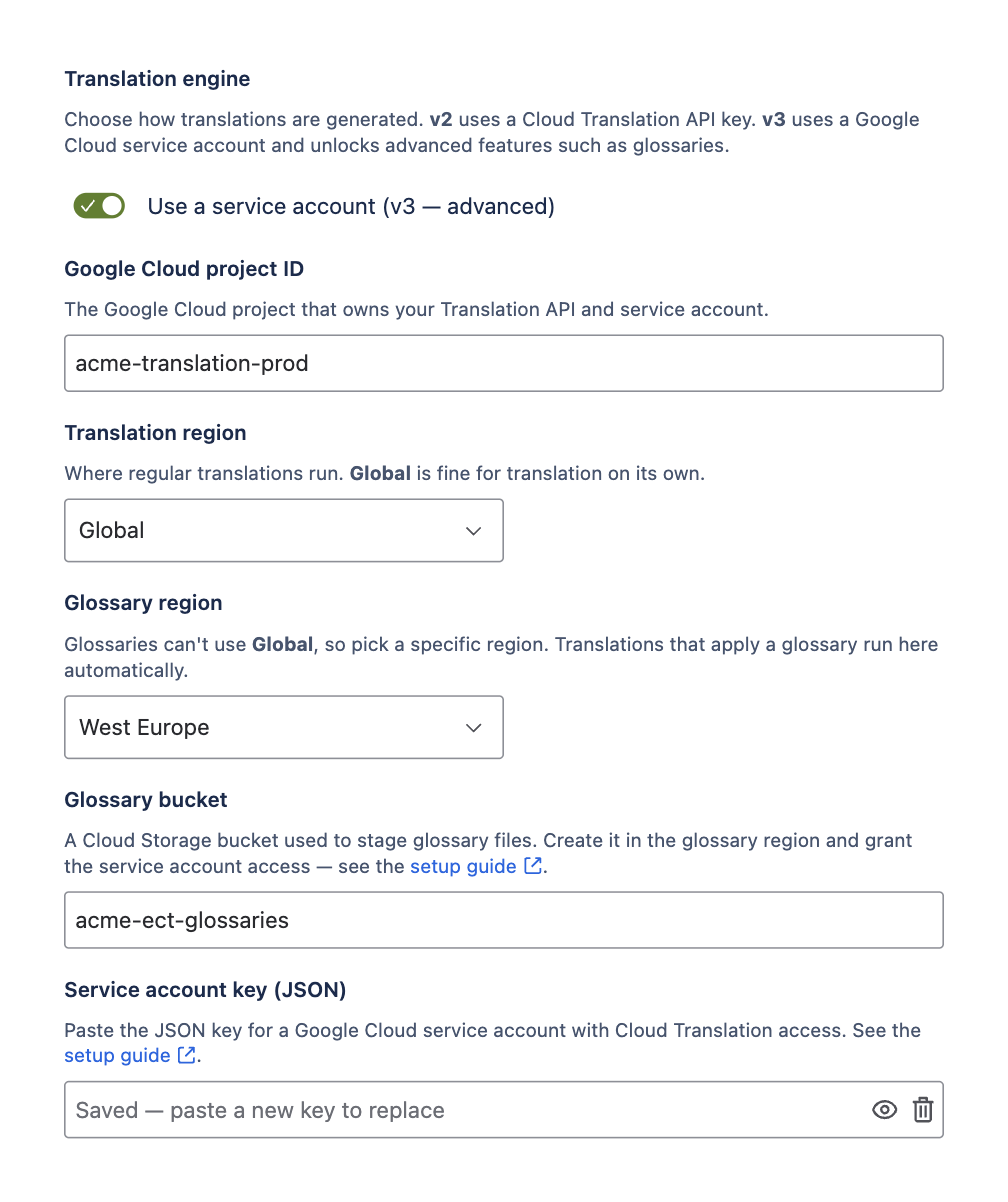
Open the Google tab and switch Use a service account (v3 - advanced) on. Five fields appear.
Google v3 settings | Image
|
Field |
What to enter |
|---|---|
|
Google Cloud project ID |
The project that owns your Translation API and service account. |
|
Translation region |
Where regular translations run. Global is fine for translation on its own. |
|
Glossary region |
A specific region - glossaries cannot use Global. Translations that apply a glossary run here automatically. |
|
Glossary bucket |
The Cloud Storage bucket used to stage glossary files. Create it in the glossary region. |
|
Service account key (JSON) |
Paste the full contents of the downloaded JSON key file. |
Save. The service account key field then shows Saved - paste a new key to replace. The key
is stored encrypted and is never displayed or sent back to the browser again.
Regions must be concrete. us and eu are Google endpoints, not region values - pick a real region such as us-west1 or europe-west1. Google's https://docs.cloud.google.com/translate/docs/advanced/endpoints page explains this: you must pick a region inside the continental boundary of the endpoint. That page is also the reference if you need translation data to stay within the EU or US for compliance reasons.
Keep the bucket and the glossary region together. Create the bucket in the same region you select as Glossary region.
Check that it worked
Save the settings and translate a page. If something is missing you will see one of:
-
Missing Google Project ID - the project ID field is empty.
-
Invalid Google Service Account - the pasted JSON could not be read, or the service account
is missing permissions.
Once the service account, glossary region and glossary bucket are all set, a Glossaries
section appears at the bottom of the Google tab. See Manage Glossaries.
Available languages
With available languages you can select the languages the users on this instance will be able to translate to. Only the selected languages will be available for translation. By default all languages are available and at least one language needs to be selected.
Available Languages | Image
