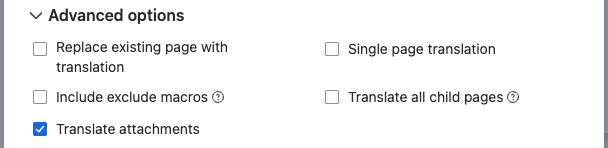
Advanced Options let you precisely control how translations are applied to the current page. Use these settings to decide whether the current page is replaced in place, preserve sensitive or macro content, and include supported attachments in the translation. Adjusting these options helps prevent accidental overwrites, keep protected text unchanged, and ensure translations behave predictably across page trees.
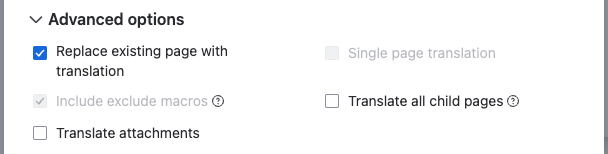
Replace existing page with translation
The Replace Existing Page feature allows you to translate the current page into the target language without creating a new page.
-
The original page is updated with the translated content, preserving its existing formatting and styling.
-
This approach ensures that any previous layout, formatting, or structure remains intact.
-
It also simplifies applying updates, as changes are made directly on the same page rather than managing multiple versions.
Advanced Options | Image
Single page translation
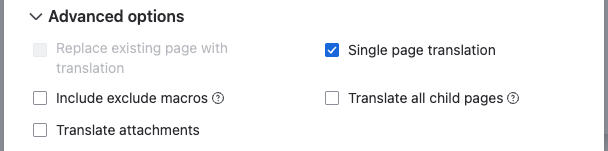
The Single Page Translation feature turns the current page into a single, language-switchable page instead of a separate translated page per language. Select the checkbox in Advanced Options to enable it.
Advanced Options | Image
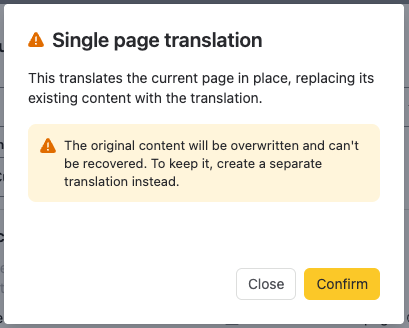
Because this replaces the page's existing content, a confirmation step appears before it proceeds.
This translates the current page in place, replacing its existing content with the translation. The original content will be overwritten. To keep it, create a separate translation instead.
Other macros present on the page have limited support once the page is converted.
Single page translation confirmation | Image
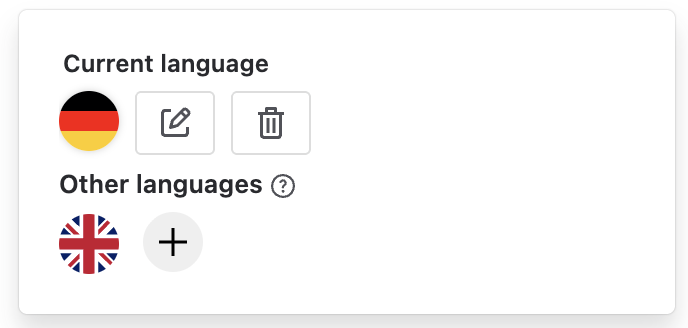
Once the page is converted, a language selection widget appears in the same place as the “Translate page” widget. Use it to switch between existing translations, or add a new one.
Edit translation, Delete translation, and Update outdated translation are available as actions on each translated language where appropriate.
Language Selection | Image
Include excluded macros on translated page
The Include Excluded Macros feature preserves content placed inside the Exclude Translation Macro on the translated page without sending that content to the translation provider. Text you add inside the macro remains visible on the translated page exactly as you entered it, making this ideal for sensitive text, identifiers, legal notices, or any content that must not be translated.
Advanced Options | Image
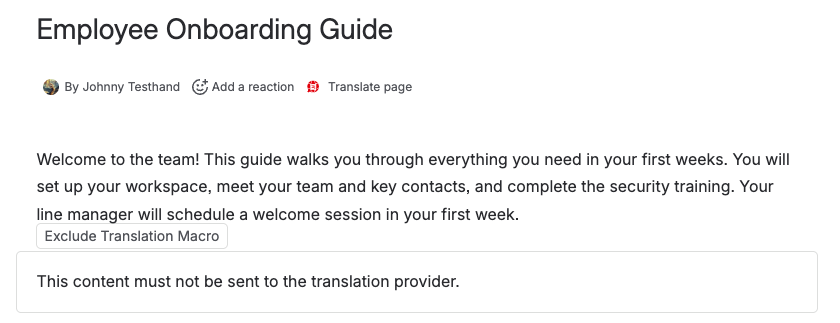
Insert the "Exclude Translation" into the page, then add any text you do not want translated or that should be excluded from the translated page.
Advanced Options | Image
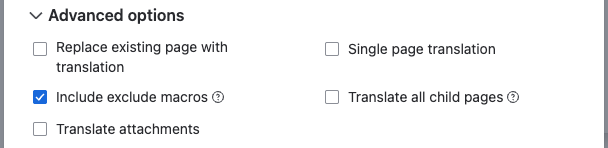
When selected, the macro and its contents appear on the translated page but are excluded from translation. When not selected, the macro (and its contents) will be removed from the translated page.
Translate all child pages
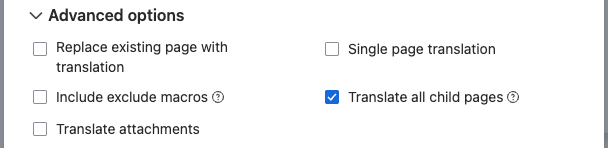
Translate All Child Pages creates translations for all child pages under the selected page in addition to the selected page itself.
This is useful for translating an entire section or subtree of content in one operation, preserving the hierarchy and producing translations for descendants automatically.
Only use this when you intend to translate a page and its descendants as a group.
Advanced Options | Image
Translate attachments
This option is only available when DeepL is selected as the translation provider and requires user confirmation before enabling.
Translate Attachments sends supported file attachments associated with the page to the translation provider (DeepL) to be translated alongside the page content.
Use this when attached documents should be translated and included as part of the page translation workflow.
Supported file types
-
.doc(x) - Microsoft Word documents
-
.pptx - Microsoft PowerPoint presentations
-
.pdf - Portable Document Format files
Advanced Options | Image