
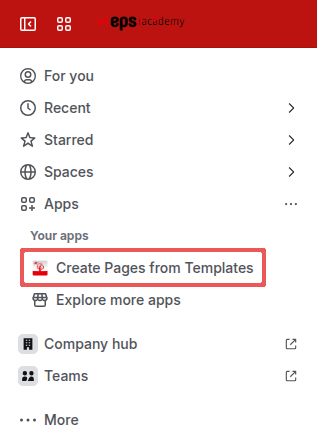
You can quickly and easily create pages or entire page trees by using the Create Pages from Templates button, which is located under Apps in the left-hand navigation panel. This feature allows you to generate new pages based on PTC templates, making it easy to efficiently reuse recurring layouts and maintain consistency throughout your site.
How it works:
-
In the left-hand navigation, open the Apps section.
-
Select Create Pages from Templates from the list.
-
The dialog for creating pages from templates will then open.
You can now choose from templates that include a PTC Template or a Template Sticker to create new pages or entire page trees. This helps you save time and ensures that your pages follow a consistent structure.
PTC Create Pages from Templates Button | Image
Template Dialog
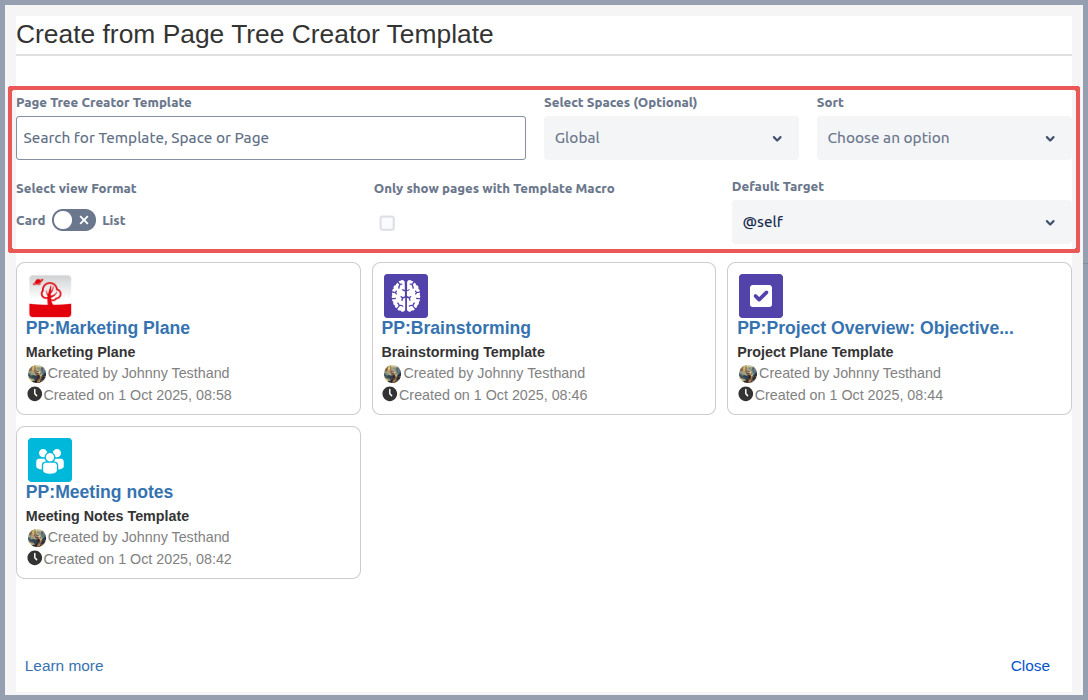
After clicking Create Pages from Templates, a dialog will open displaying all available templates. For a template to appear in this dialog, the following conditions must be met:
-
You must have permission to access both the space and the template.
-
The template source page must include either the PTC Template Macro or a Template Sticker.
A template will only be displayed and selectable in the dialog if all of the above requirements are fulfilled.
Within the dialog, you have several options to efficiently find and select the appropriate template for your needs. For more information about these options, please refer to the section further below in this guide. These features make it easy to locate and choose the right template, ensuring that your new pages are created with the correct structure and placed in the desired location.
PTC Create Pages from Templates Dialog | Image
Template Information
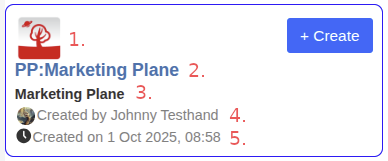
For each template, the following information is displayed:
-
1. Template icon: Visual representation of the template.
-
2. Space key: Page title – Indicates the space and the title of the template source page.
-
3. Template name: The name of the template.
-
4. Created by: The user who created the template source page.
-
5. Created on: The date and time when the template source page was created.
These details are taken from the parameters defined in the PTC Template Macro.
If no PTC template is defined on the template page, the icon from the space will be used, and the page title will default to the template name.
Template in PTC Create Pages from Template Dialog | Image
By selecting a template and clicking Create you will start the process of generating the page or page tree based on the chosen template.
Macro Filter and Sorting Options
To help you find the right template, various filter and sorting options are available. You can also customize the view to suit your preferences.
|
Option |
Description |
Default Value |
|---|---|---|
|
Search Input Field |
Scans the name and template name of the template for matches. |
|
|
Select Spaces (Optional) |
Select one or more spaces in which to search for templates. |
|
|
Sort |
Options:
|
Date Added (Newest first) |
|
Select view Format |
Options:
|
Card |
|
Only show pages with Template Macro |
Displays only templates that contain a PTC Template Macro on the page. |
Disabled |
|
Default Target |
Options:
|
@Self |
By using these filters and sorting options, you can quickly find and select the most suitable template for your needs, streamlining your workflow and ensuring consistency across your content.