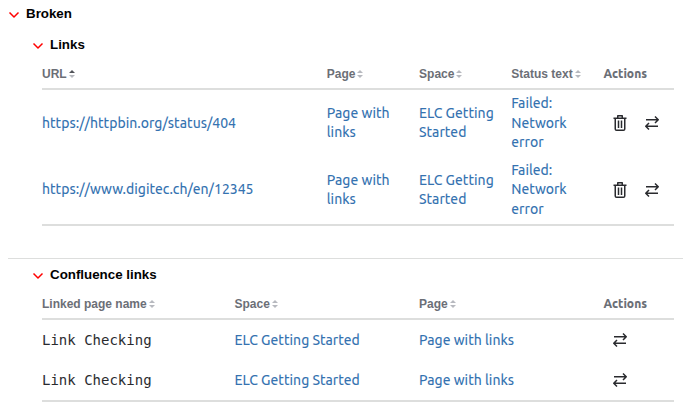
The Detailed Results show the results of a link check.
Detailed Results | Image
Summary
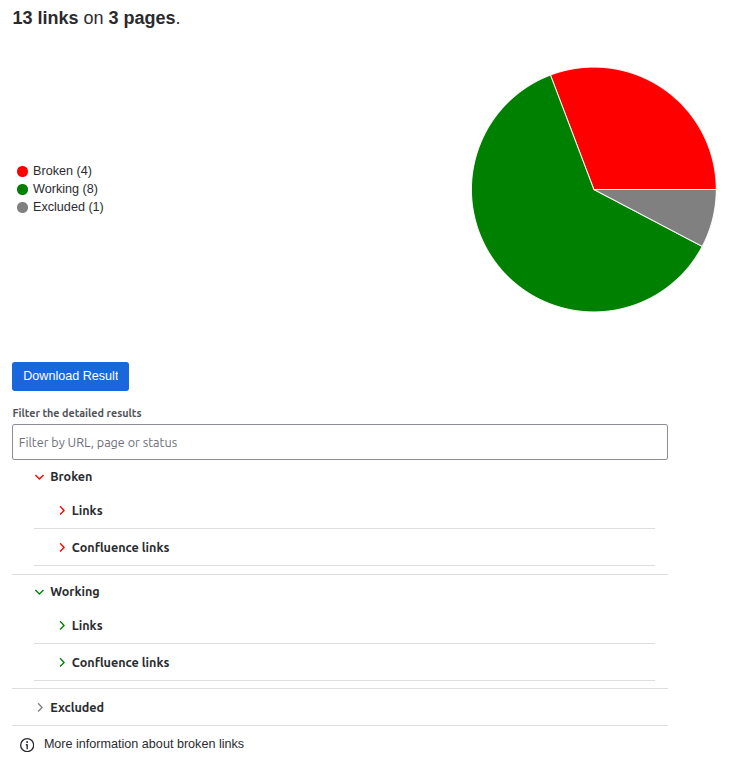
The Summary show a short overview of the link check results.
Summary | Image
Download Results Button
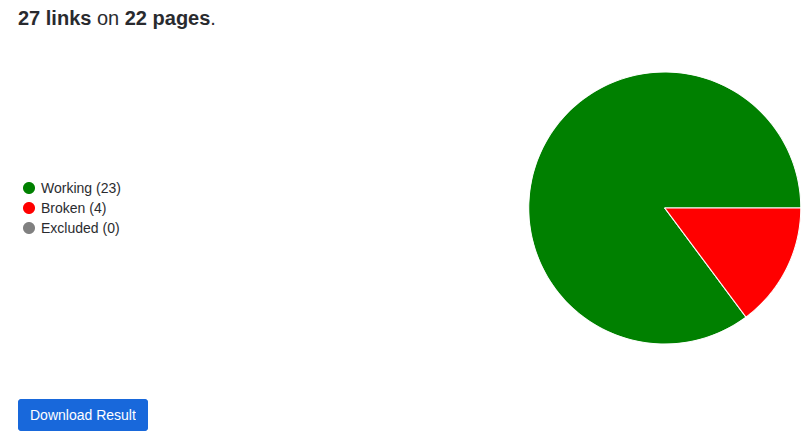
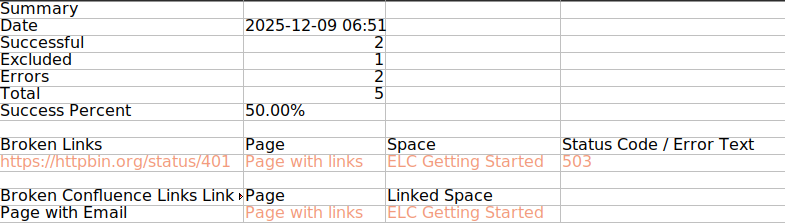
The Download Result button allows the user to download the link check result as a .xlsx file. The downloaded file contains a short summary of all results and the broken links and their location.
Downloaded file | Image
Detailed Results
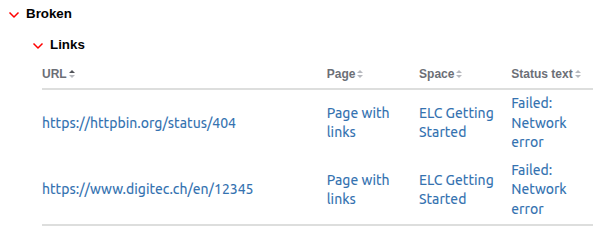
The Detailed Results show all the link check results. It consists of 5 categories (Broken Links, Broken Confluence Links, Working Links, Working Confluence Links & Excluded)
Depending which link check has been performed different cells get displayed in the detailed results.
-
Website Link Check: URL, Status Text
-
Instance Link Check: URL, Page, Space, Status Text
-
Link Check: URL, Page, Status Text
Example Instance Link Check Results | Image
Action Buttons
The user has the option to directly replace or exclude a broken link after a link check.
-
Replace Button: This button opens a replacement dialog in which the user can paste the correct working link. The link gets replaced directly on the corresponding confluence page.
-
Exclude Button: This button adds the link to the excluded option in the further configuration. When the next link check is performed, this specific link will be in the excluded section. The exclude button is only available for normal links. Confluence link can’t be excluded.
Action Buttons | Image